

Your first week should create a clean cost baseline
CostBeacon works best when the first setup is simple: upload a small batch of recent supplier invoices, confirm the extracted supplier and product data, then set alert thresholds that match how your business actually reviews cost changes.
CostBeacon turns this workflow into an invoice-backed system: see the invoice price tracking product, compare plans and trial options, or review our supplier price tracking software page for the commercial overview.
You do not need a perfect historical archive on day one. A useful start is enough recent invoice data to show recurring suppliers, repeated products, unit costs, quantities, and the first signs of price movement.
First supplier invoices
PDFs and images become the starting evidence for supplier, invoice, and line-item records.
Supplier + product lines
Cost history updates
Repeated products gain previous cost, latest cost, date, supplier, and unit-of-measure context.
Alerts focus attention
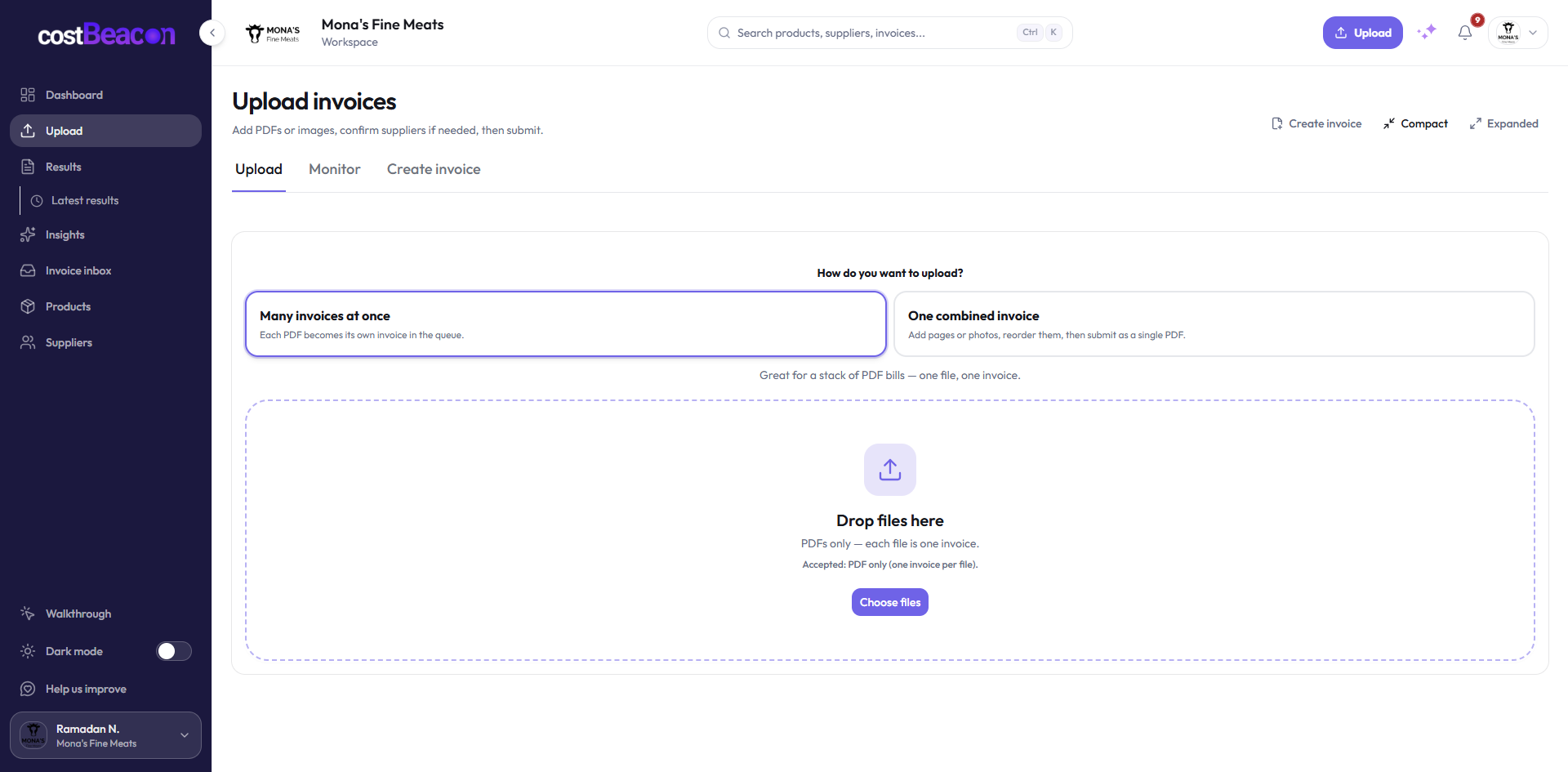
Step 1: upload your first invoices
Start with the suppliers you buy from every month. Upload a recent invoice from each major supplier, then add a second or third invoice for the products whose cost matters most. That gives CostBeacon enough context to compare latest unit cost against prior unit cost.
After processing, review the extracted invoice fields and product lines. The most important fields are supplier name, invoice date, product description, quantity, unit measure, unit cost, and line total. Those are the fields that make later price comparisons meaningful.
Step 2: understand the tracking layers
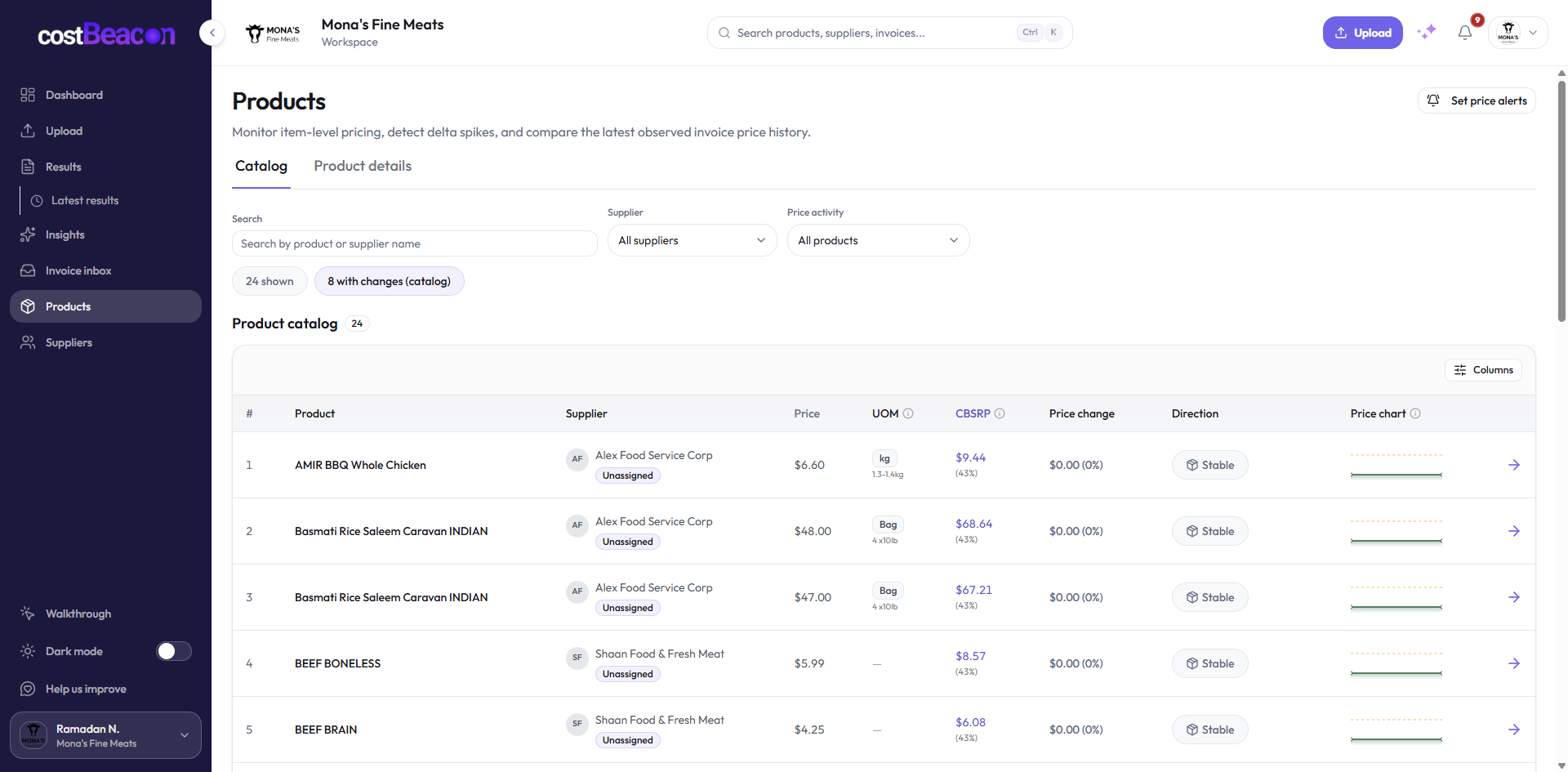
CostBeacon tracks costs at several levels because different questions live at different levels. A single invoice can tell you what arrived this week. A product record tells you whether one item is getting more expensive. A supplier record tells you which vendor deserves attention. Department assignments help you group supplier pressure for reporting.
Invoice number, supplier, date, total, processing status, and extracted line items.
Unit cost, quantity, unit measure, historical prices, latest delta, CBSRP, and product-level overrides.
Supplier spend, product changes, margin override, department assignment, and supplier alert policy.
Departments group suppliers for spend and Insights reporting, so broad areas are easier to compare.
Step 3: set global, supplier, and product price alerts
Price alerts watch unit cost movement after invoices are uploaded and processed. A global policy gives the whole workspace a baseline. Supplier policies can make one vendor more sensitive than the global default. Product policies can be even more specific when one item is high-volume, volatile, or margin-critical.
The practical setup is simple: start with a workspace-wide upper-bound alert for meaningful price increases, then tighten supplier or product rules only where the noise is worth it. CostBeacon also supports lower-bound checks, which can be useful when you want to know that a product cost fell and a price, quote, or supplier conversation should be revisited.
The default safety net for the whole workspace.
Supplier departments help reporting show where cost pressure is clustering.
A vendor-specific policy can override the global baseline for that supplier.
The most specific policy wins when a critical product needs tighter review.
Product rule fires. Supplier and global rules stay quiet because the item-level rule is more specific.
Step 4: set margin rules and understand margin alerts
Margin alerts are different from price alerts. A price alert asks, "Did the unit cost move enough?" A margin alert asks, "Does the latest cost still fit the margin rule we expected?"
CostBeacon uses margin rules to calculate CBSRP, the CostBeacon sticker price. In plain English, CBSRP is an internal suggested sell price based on unit cost and your margin percent. Margin rules resolve from product override, to supplier override, to the workspace global margin. That lets one product or supplier use a different margin expectation without rewriting the whole workspace.
The margin signals you should know are thin margin and out of margin. Thin margin means cost is taking up too much of the target price. Out of margin means the latest unit cost has moved beyond the sticker implied by the previous cost sample. These are prioritization signals, not a full profit-and-loss statement.
Pick the most specific margin target
It is not automatic labor, rent, utility, or full P&L tracking. It is invoice-first margin pressure based on supplier unit costs and your margin rules.
Step 5: create a weekly review rhythm
Once the first invoices are uploaded and alerts are tuned, the workflow becomes a weekly rhythm. Upload invoices, check the review queue, look at supplier and product changes, and adjust the alert rules only when they are too noisy or too quiet.
Do not tune everything on the first day. Start with broad thresholds, let a few invoice cycles run, then narrow the rules around suppliers and products that repeatedly create margin pressure.
A simple first setup checklist
Use this order when you want CostBeacon to start producing useful signals quickly:
- Upload recent invoices from the suppliers you review most often.
- Confirm supplier names and merge duplicates before trusting supplier summaries.
- Review extracted product lines for item name, quantity, unit measure, and unit cost.
- Create departments for broad reporting groups and assign suppliers to them.
- Set a global margin percent under pricing rules so CBSRP and margin watchlists can work.
- Set workspace price alert thresholds, then tighten supplier and product policies where needed.
- Review thin-margin and out-of-margin lists as prioritization signals, not as a full P&L.
Final takeaway: CostBeacon becomes useful when invoice detail turns into memory. Upload the first invoices, let product history form, set sane global defaults, then use supplier and product overrides only where the data proves they are needed.
FAQ
Common questions
How does CostBeacon help with supplier costs?
CostBeacon extracts line-item costs from supplier invoices and tracks product history so you can see price changes before margin is squeezed.
Do I need QuickBooks?
No. CostBeacon works from uploaded invoices; QuickBooks Online sync is optional.